VS Code Extension
Get Started
Install Hydron from the VS Code Marketplace, or run:
For the full installation and authentication walkthrough, see Quickstart.
Once your Project Dashboard is configured, click the project dropdown at the bottom of the chat pane and select your project. Hydron pulls in your platform docs, schematics, and indexed codebase. Every answer from that point is grounded in your actual hardware stack.
Open the chat pane and start asking.
The Interface
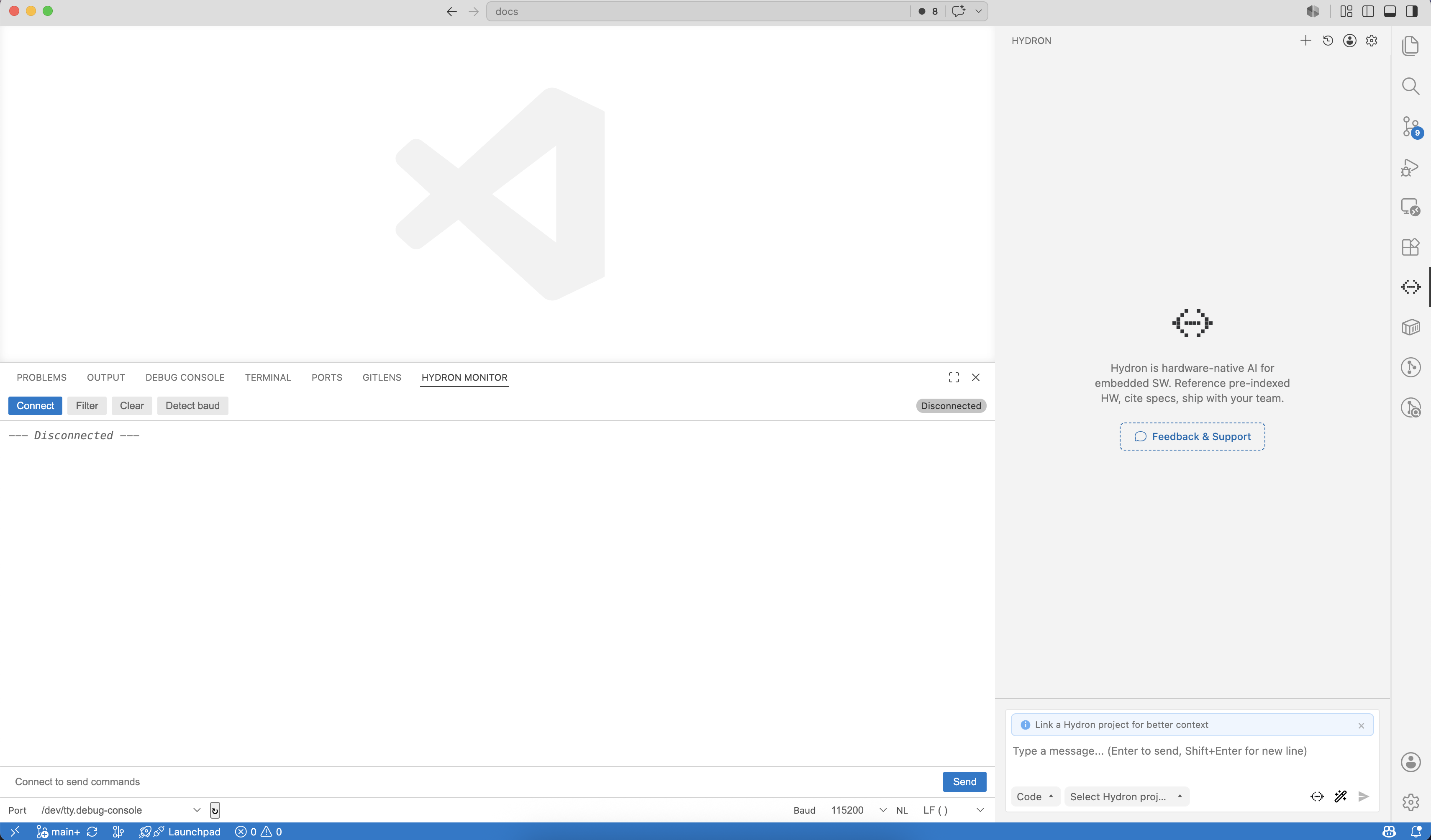
Once installed, Hydron embeds itself into your VS Code layout:
- Chat Pane (Activity Bar): Your primary interface for generating code, diffs, and hardware queries.
- Agent Mode Selector: A dropdown inside the chat input box. Select the mode that matches your current task.
- Project Dropdown: Fixed at the bottom of the chat pane. Click to select your project. If you haven't created one yet, click Create project to be taken to the Hydron Dashboard.
- Hydron Monitor: A dedicated serial monitor panel at the bottom of your VS Code layout. Stream, filter, and send data to your device without leaving the editor.
Tip
Select your configured project from the dropdown at the bottom of the chat pane before prompting. Hydron scopes every answer to that project's hardware stack.
Ask Your First Question
With your project selected, type a prompt in the chat input and press Enter.
"Walk me through the main entry points and which hardware peripherals are being initialized."
Tip
Use @filename in your prompt to pull in a specific file as context. For example: "In @drv8316.cpp, explain the register write sequence."
Context & Mentions
Hydron automatically discovers relevant C/C++ files on demand using built-in search tools (read, grep, glob, bash). For firmware development where strict boundaries matter, use @-mentions to explicitly anchor the AI to specific files, commits, or terminal outputs.
Type @ in the chat input to open the autocomplete menu.
| Mention | Description | Firmware Use Case |
|---|---|---|
@file | Attaches a local file's contents. | "Add DMA support to @src/drivers/drv8316.c." |
@terminal | Attaches recent terminal output. | "Fix the linker errors in @terminal." |
@problems | VS Code only. Imports IntelliSense errors. | "Resolve the missing headers shown in @problems." |
@git-changes | Attaches uncommitted diffs. | "Write a commit message for @git-changes." |
@commit-hash | Analyzes a specific commit. | "Did @a1b2c3d introduce this priority inversion?" |
Drag and Drop (VS Code): Drag files from the Explorer directly into the chat pane. Hold Shift to drop external images like schematic snippets or logic analyzer screenshots for visual analysis.
For patterns on using mentions effectively and other prompt strategies, see Best Practices.
Hydron Monitor
Ditch minicom and screen. Open a persistent, interactive serial monitor directly inside VS Code as a dedicated panel.
Inside the panel:
- Connect, disconnect, or reconnect to a port
- Pick a port from the detected list
- Add or remove a saved port
- Cycle baud rate
- Clear the buffer
- Filter input
- Send input to the connected device
Serial monitor summarizer
- Posts a short digest of your device's serial output into chat every 30 seconds, so you can follow what is happening without scrolling the raw monitor.
- Covers only new lines, and highlights only what matters: errors, warnings, state changes such as boot and reset, and notable values.
- Works for ports the agent opens and for ports you connect manually, and stays silent when there is nothing worth reporting.
Agent Modes
Click the agent mode dropdown in the chat input to select a mode, or type /agents to switch. Each mode tunes the AI for a specific phase of firmware development.
| Mode | Best for |
|---|---|
| Ask | Querying datasheets, pinouts, or understanding complex RTOS mechanisms in your codebase |
| Plan | High-level system design: memory mapping, DMA routing, or publish-subscribe (uORB) architectures before writing any code |
| Debug | Analyzing hard faults, stack overflows, or parsing live serial log dumps to find the root cause of a crash |
| Code | Writing HAL implementations, sensor drivers, and bit-banging routines |
Slash Commands
Type a command in the chat input and press Enter.
| Command | Aliases | Description |
|---|---|---|
/new | /clear | Start a fresh session (current input carries over) |
/sessions | - | List and resume previous sessions |
/compact | /summarize | Summarize history to free up context |
/help | - | Open the Help dialog |
/local-review | - | Local review (branch diff vs base) |
/local-review-uncommitted | - | Local review (staged + unstaged in working tree) |
Tip
Each conversation is a session and persists across VS Code restarts. Long sessions slow the AI down. Run /compact to summarize history and free up context, or /new to start fresh.